
1. Introduction
Overview of the Problem
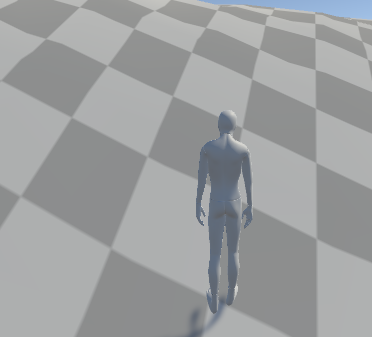
In the field of modern game development, especially within the expansive genre of open-world games and other dynamic, interactive environments, the demand for realistic character animations has risen substantially. Gamers expect immersive experiences where character movements seamlessly interact with the surroundings, allowing for smooth transitions and accurate responses to terrain features. However, the default animation methods often fall short, presenting movements that can feel rigid, pre-defined, and unrealistic. When a character traverses uneven surfaces, climbs stairs, or interacts with various objects, the limitation of these animations becomes evident.
This rigid response reduces the sense of immersion and detracts from the overall quality of the gameplay experience. For players, realistic character animation is more than a visual enhancement; it is a fundamental element that contributes to believability and emotional engagement with the game world.
Problem Statement
In modern video games, particularly those that involve open-world environments or complex terrains, character animations often fail to respond naturally to environmental changes. For instance, characters walking on uneven surfaces or interacting with objects tend to exhibit animations that are stiff and unrealistic. These limitations in character movement diminish player immersion and compromise the overall quality of gameplay. To address this issue, a system is needed to dynamically adjust character animations based on the environment, enabling smooth and realistic interactions with various terrains and objects.
Research Question
How can a procedural animation system be designed to allow characters to adapt their movements and postures dynamically to changing terrains and environmental objects in real-time? Specifically, what techniques—such as inverse kinematics (IK)—can be employed to ensure seamless integration with existing Unity animations and deliver realistic movement across diverse terrains?
R&D Project Description
The core objective of this project is to develop a system that enables characters in video games to adjust their movements in real-time while interacting with uneven surfaces, such as stairs, hills, or rocky terrain. By leveraging inverse kinematics (IK) and integrating these adjustments within the Unity platform, this system will modify character poses dynamically, resulting in movements that are more natural and responsive to environmental changes. The project will focus on Unity’s IK capabilities to create a solution that enhances the realism of character interactions and overall gameplay immersion.
Why Use IK for Dynamic Terrain Adaptation?
Traditional animation approaches, such as Forward Kinematics (FK), lack the flexibility required for real-time adaptation to complex environments. FK operates by setting transformations hierarchically, which often limits the control of end-effectors like feet or hands. Inverse Kinematics (IK), however, allows control from the extremities, calculating the positions of limbs to dynamically adjust to the environment. Thus, IK is well-suited for applications requiring characters to naturally react to surface variations in real time.
Research and Development (R&D) Objectives
The primary objective of this project is to integrate an IK-driven foot-placement system within Unity, allowing characters to adapt to varied terrain conditions. The R&D will encompass both technical and creative exploration into building an adaptive animation system for real-time terrain response, with broader implications for immersive experiences in open-world games, simulations, and AR/VR applications. This approach will lay the groundwork for enhancing visual realism and player engagement, fostering a more lifelike and interactive game environment.
2. Understanding Inverse Kinematics (IK) in Unity
What is Inverse Kinematics (IK)?
Inverse Kinematics (IK) is a mathematical technique widely used in animation and computer graphics to determine joint positions in structures, such as character limbs, based on a target’s location. Unlike Forward Kinematics (FK), which calculates movement starting from the root joint down to the extremities, IK works in the reverse direction, adjusting joints based on the target’s position (such as a hand or foot). This approach enables a limb to reach a specific location, regardless of preceding joint rotations, creating a realistic and responsive animation experience.
In game development, IK is invaluable for creating lifelike animations, as it allows characters to adapt dynamically to their environments. This capability is especially useful for adjusting a character’s foot position to remain flat on uneven surfaces or for having a hand reach towards objects in the game world. Integrating IK with real-time environmental data enhances immersion by creating adaptive animations.
Forward Kinematics vs. Inverse Kinematics
To better understand IK’s role, it’s helpful to compare it with Forward Kinematics (FK):
Forward Kinematics (FK):
- In FK, joint rotations propagate from the root joint down to the limb’s end.
- It provides a simpler structure, best suited for fixed animations.
- FK lacks adaptability to real-time interactions, making it challenging for dynamic responses.
Inverse Kinematics (IK):
- Control starts from the end effector (e.g., hand, foot), and calculations determine the required joint rotations back up to the root.
- IK is highly flexible for real-time environmental adaptation, which is essential for tasks like foot placement on uneven terrain.
- This flexibility allows for more realistic interactions, enhancing animation and gameplay realism.
IK Implementation in Unity
Unity offers built-in IK support within the Animator component, enabling developers to add IK-based adjustments to animations. The IK system is accessed via scripting, specifically using the OnAnimatorIK method, which runs every frame and allows setting IK targets.
Key Components for IK in Unity:
- Animator and IK Setup:
- Ensure the character has an Animator component with IK-compatible animations.
- Enable the IK Pass on animation
3. Unity Tools for IK
Unity provides a suite of built-in tools and components to simplify the setup and control of Inverse Kinematics (IK) for characters, enabling developers to create realistic, adaptive animations in complex environments.
Animator Component
The Animator component is Unity’s primary tool for handling character animations and applying IK. It includes essential tools for IK, such as AvatarIKGoals for controlling hands and feet. The Animator allows blending between animations, transitioning between different states, and directly handling IK adjustments within the animation flow.
Key Features of the Animator:
- Animator Layers: Unity’s Animator allows for multiple animation layers, each with its own IK setup. By placing IK-enabled animations on specific layers, developers can fine-tune IK applications only where necessary, such as in walking or climbing animations.
- IK Pass: In any animation layer where IK is required, enabling the “IK Pass” checkbox ensures that IK calculations apply after the animation, allowing the system to adjust limb positions and rotations to match dynamic surfaces.
Adding an Image:
To illustrate the Animator settings, you can add an image of the Animator component in Visual Studio Code using Markdown syntax:
OnAnimatorIK() Method
The OnAnimatorIK() method is a built-in Unity function within the Animator component. It allows developers to access and modify IK targets at runtime on a per-frame basis. Within OnAnimatorIK(), you can set positions and rotations for body parts, such as hands and feet, using Unity’s predefined AvatarIKGoal targets (LeftFoot, RightFoot, LeftHand, RightHand).
Typical Uses of OnAnimatorIK():
- Setting IK Position and Rotation: This method enables setting the precise position and rotation for each body part based on environmental data.
- Setting Weight of IK Influence: You can adjust the weight of each body part’s IK influence within
OnAnimatorIK()to blend IK smoothly with default animations. Weights between 0 and 1 allow partial control, creating natural-looking adjustments.
AvatarIKGoal Enum
Unity’s AvatarIKGoal enum provides pre-defined targets for commonly used body parts, such as LeftFoot, RightFoot, LeftHand, and RightHand. Each target can be adjusted independently within OnAnimatorIK() for precise control, allowing for fine adjustments to limb placement and rotation based on the game environment.
Raycasting
Unity’s Physics system includes Raycasting, which is essential for detecting ground surfaces beneath each foot and ensuring that IK adjustments align with the surface height and angle. By casting a ray from each foot toward the ground, developers can gather data on distance, slope, and position, which can then be used to adjust the IK targets accordingly.
Steps to Implement Raycasting for Foot IK:
- Define Ray Origin and Direction: Position a ray just below each foot and cast downward to detect the ground surface.
- Analyze Hit Data: After the ray hits a surface, retrieve hit information (position, normal) and use it to determine the correct height and rotation for each foot.
- Adjust IK Targets Based on Raycast Data: Use the hit position and angle to place the foot accurately on the terrain, maintaining realistic contact with sloped or uneven surfaces.
4. Project and Character Setup
To create a robust foot placement system in Unity, it’s essential to set up both the project and character model correctly. This setup involves configuring Unity settings, creating necessary scripts, and ensuring the character model is optimized for IK control.
Step 1: Preparing the Unity Project
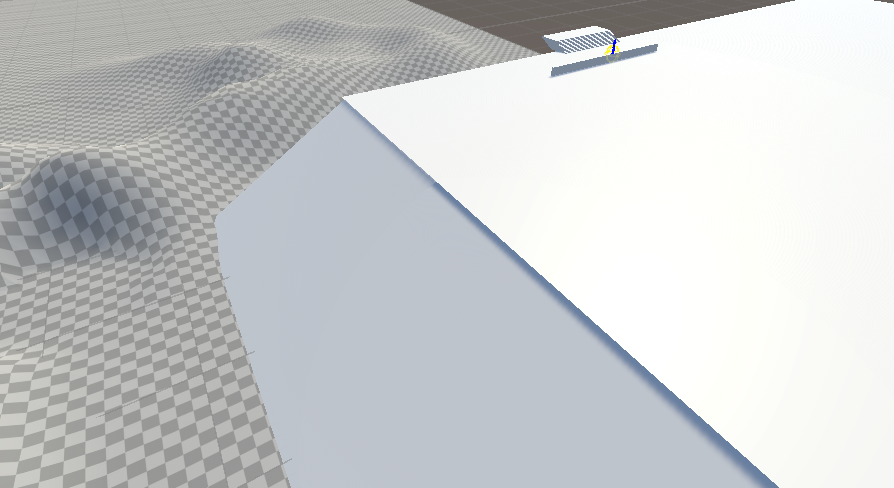
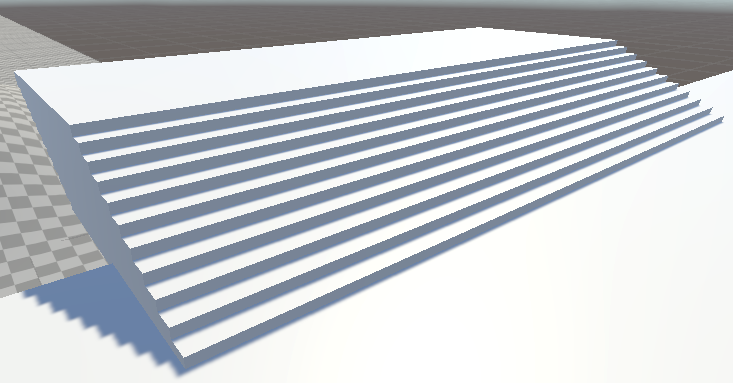
Set Up Layers
Create dedicated layers for environmental features, such as “Ground” or “Terrain,” to differentiate them from other objects in the scene. This separation enables Raycasts to target specific surfaces for IK adjustments.
Import Character Model
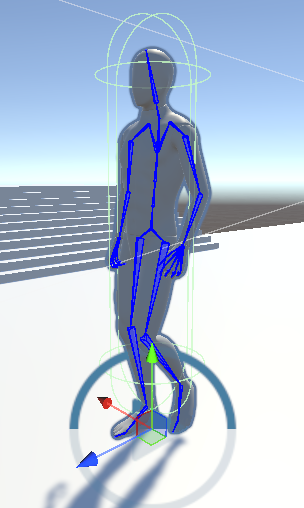
Import a character model that includes a humanoid skeleton rig, which is compatible with Unity’s IK system. Make sure the model has the necessary bones defined (e.g., feet, legs) and is configured as a Humanoid rig for IK compatibility.
Add Animator Component
Attach the Animator component to your character. This component will drive animations and allow access to IK adjustments through the OnAnimatorIK() function.
Step 2: Configuring the Character for IK
Create Avatar and Configure Rig
- Select the character model and set the rig to “Humanoid.” This setup is essential for Unity’s IK functionality, allowing Unity to apply IK to predefined body parts.
- Set up an Avatar if not already present. The Avatar will map the character’s bone structure to Unity’s IK goals, enabling bone control based on IK adjustments.
Set Up Animator Layers and Enable IK Pass
- Open the Animator window and create layers for your animations, like “Base Layer” for default animations and additional layers for specific actions.
- For any layer where foot placement is adjusted, enable the “IK Pass” checkbox to ensure that IK adjustments apply after animation calculations, allowing for realistic interactions with uneven terrain.
Set Up Target Transforms
Create empty GameObjects to act as targets for each foot, positioning them slightly below each foot. Name these targets (e.g., LeftFootTarget, RightFootTarget) for easy reference in scripts. These targets will serve as references for foot placement adjustments based on terrain analysis.
Step 3: Adding and Configuring Foot Placement Scripts
FootPlacementIK Script
- Create a script named
FootPlacementIK.csto handle foot placement. This script should include Raycasting functions for ground detection and logic to adjust each foot’s IK position and rotation. - Include references to the Animator component and target Transforms for each foot, which you can set through the Inspector.
CharacterIKHandler Script
Develop a CharacterIKHandler script to manage overall IK adjustments, ensuring the character’s IK targets dynamically update with environmental interactions. Within this script, reference the FootPlacementIK component to facilitate communication between the foot placement logic and the OnAnimatorIK() function.
Assign References in the Inspector
After attaching the scripts to the character:
- In the Unity Inspector, set the Animator component in the
FootPlacementIKscript. - Assign
LeftFootTargetandRightFootTargetto their respective fields in theFootPlacementIKscript. This setup ensures that the character’s feet adjust based on terrain detected by Raycasting.
Step 4: Testing and Fine-Tuning
Enter Play Mode
Test the setup by moving the character over various surfaces, such as slopes, stairs, or uneven ground. Check if the feet adjust according to the terrain’s height and angle.
Fine-Tune Settings
Adjust the weight of IK influence and any offset values in the FootPlacementIK script to create smoother and more realistic transitions. Experiment with Raycast distance and IK weight settings to achieve the desired effect.
Verify Animation Blending
Ensure that foot placements blend seamlessly with walking animations, resulting in fluid and natural movement as the character interacts with the environment.
5. Implementing the Foot Placement IK System
The foot placement system involves using Raycasting to detect surfaces under each foot and adjusting the foot’s position and rotation based on that information. This system allows the character’s feet to align with different surfaces, adding realism when walking on slopes, stairs, or uneven terrain.
Step 1: Create the FootPlacementIK Script
The core script for foot placement, often named FootPlacementIK.cs, will manage Raycasting and control the IK for each foot, adjusting them in response to the terrain.
Initialize Variables:
In the FootPlacementIK script, define references to the character’s Animator component, and specify Transform variables for the left and right foot targets. Define adjustable parameters for Raycast distance, which will allow you to fine-tune how far down each ray should check for a surface.
Using OnAnimatorIK() for IK Adjustments:
The OnAnimatorIK() method, within the FootPlacementIK script, will control the positioning of each foot in response to Raycast results.
Within this method:
- Cast a ray downward from each foot’s position to detect the terrain below.
- If a Raycast hit is detected, adjust the IK position and rotation of each foot to match the hit point’s position and orientation.
Adjust Foot Target Position and Rotation:
When the Raycast detects a surface, set the IKPosition and IKRotation for each foot to match the Raycast hit point. Use SetIKPosition and SetIKRotation in OnAnimatorIK() to assign the calculated positions and rotations for AvatarIKGoal.LeftFoot and AvatarIKGoal.RightFoot.
Here’s an example code snippet to illustrate how this is implemented:
using UnityEngine;
public class FootPlacementIK : MonoBehaviour { public Animator animator; public Transform leftFootTarget; public Transform rightFootTarget; public float raycastDistance = 1.0f;
private void OnAnimatorIK(int layerIndex)
{
    RaycastHit hit;

    // Left foot raycast
    if (Physics.Raycast(leftFootTarget.position, Vector3.down, out hit, raycastDistance))
    {
        animator.SetIKPosition(AvatarIKGoal.LeftFoot, hit.point);
        animator.SetIKRotation(AvatarIKGoal.LeftFoot, Quaternion.FromToRotation(Vector3.up, hit.normal) * leftFootTarget.rotation);
    }

    // Right foot raycast
    if (Physics.Raycast(rightFootTarget.position, Vector3.down, out hit, raycastDistance))
    {
        animator.SetIKPosition(AvatarIKGoal.RightFoot, hit.point);
        animator.SetIKRotation(AvatarIKGoal.RightFoot, Quaternion.FromToRotation(Vector3.up, hit.normal) * rightFootTarget.rotation);
    }
}
}
Test and Adjust Raycast Settings:
- Set an appropriate
raycastDistanceto ensure the Raycast accurately detects the surface below each foot, adjusting the foot IK only when necessary. - Experiment with the distance values to ensure the feet respond accurately to different surfaces without affecting the natural look of the animation.
Step 2: Configure the Animator Component for IK
Enable the IK Pass:
- In the Animator window, ensure that the
IK Passoption is enabled for any animation layer using foot placement adjustments. This allows Unity to apply IK after the animation calculations, so feet position and rotation can adapt realistically.
Adjust IK Weight:
- Set IK weights dynamically if needed (e.g., when the character is moving versus standing still). IK weight controls how much influence the IK has over the foot position, blending it with the base animation.
6. Enhancing and Fine-Tuning the System
After the initial foot placement system is in place, the next step is refining it to ensure smooth, realistic movement across all types of terrain. This section covers methods to enhance and fine-tune the system for better performance and realism.
Step 1: Smooth Transitions and Blending
Blending Foot IK with Animation:
- Smooth blending between IK adjustments and animation improves foot placement realism. This can be achieved by gradually increasing or decreasing the IK weight based on the terrain or movement speed.
- Use
Mathf.Lerp()to interpolate IK weights between 0 and 1. For instance, higher IK weight could be applied on rough terrains, while smoother surfaces might use lower IK weight.
Example:
float lerpedIKWeight = Mathf.Lerp(0, 1, terrainFactor);
Implementing Slerp for Rotation
- To avoid abrupt changes in foot rotation, use
Quaternion.Slerp()to interpolate the foot’s rotation, creating a more natural rotation adjustment for various surfaces.
Step 2: Adding Toe Roll and Heel Lift
Toe and Heel Adjustments:
- Adding a roll and lift effect to the toe and heel based on terrain slope increases realism. For example, if the character is walking uphill, lifting the heel slightly while lowering the toe creates a natural stance.
- Adjusting the foot’s local rotation for the toe or heel lift can be achieved by analysing the slope angle from the Raycast hit’s normal vector.
Dynamic IK Weight Adjustment Based on Surface Slope:
- Analyse the terrain slope based on the angle of the Raycast hit normal. On steeper slopes, increase the foot IK weight to ensure the feet conform to the surface angle, and reduce the IK weight on flatter surfaces.
Step 3: Performance Optimizations
Limit Raycast Frequency:
- To maintain performance, limit the frequency of Raycasts. For instance, cast rays only when the foot is near the ground rather than in the air or at the peak of a step.
Optimise Raycast Layers:
- Configure the Raycast to detect only relevant surfaces by using layer masks. This reduces unnecessary computations and ensures Raycasts target specific terrain layers.
Use Object Pooling for IK Targets:
- If multiple characters are using foot placement IK, consider using object pooling for IK targets and Raycasting. This can help to manage resources effectively, especially when handling a large number of characters on screen.
7. Troubleshooting and Common Issues
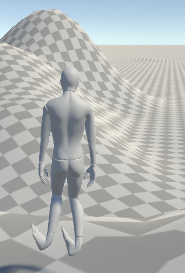
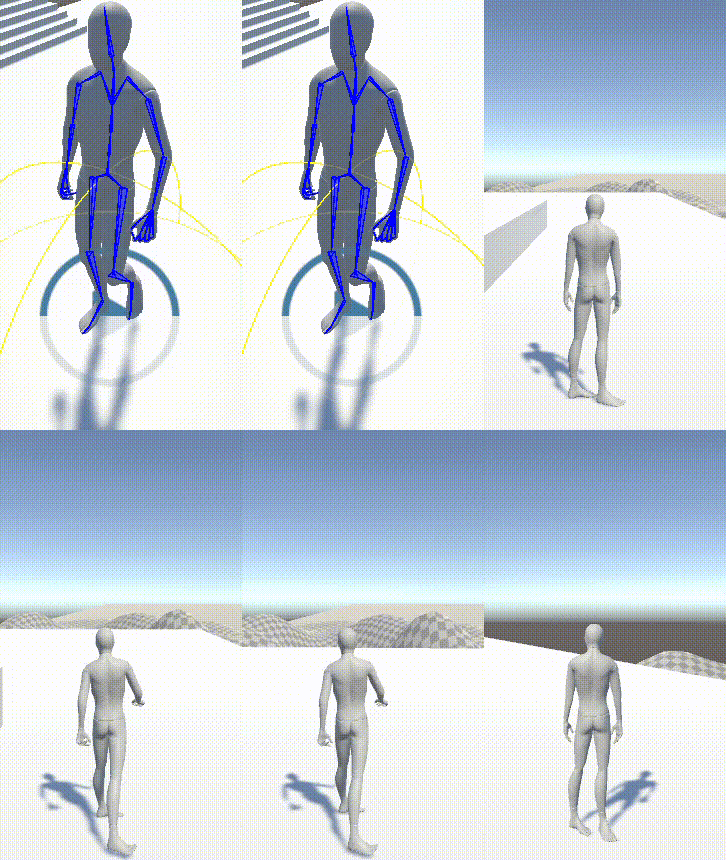
During the development and implementation of the IK foot placement system, various issues may arise that could impact the functionality and realism of the system. Here’s a comprehensive guide to identifying, diagnosing, and resolving common issues.
Issue 1: Feet Not Aligning with the Surface
Cause: The most common cause is an inaccurate Raycast or an issue with the assigned targets.
Solution:
- Verify that the Raycast distance is sufficient to detect surfaces below the character’s feet.
- Ensure that the layerMask in your Raycast is correctly set to target only relevant surfaces (e.g., terrain).
- Double-check the positioning of
leftFootTargetandrightFootTargetto ensure they align with the character’s foot bones.
Issue 2: Feet “Snapping” Abruptly When Changing Surfaces
Cause: This typically results from insufficient blending or IK weight adjustments.
Solution:
- Use
Mathf.Lerp()to smoothly blend foot positions and weights over time. - If you’re using rotation adjustments, apply
Quaternion.Slerp()to smooth transitions between foot rotations, especially on slopes. - Check the
smoothTransitionSpeedvalue in your code and adjust it to prevent sudden shifts in foot positions.
Issue 3: Character Foot “Floating” or Incorrect Positioning on Uneven Terrain
Cause: Floating feet may be due to the IK weight not being correctly applied or the Raycast not detecting the surface accurately.
Solution:
- Ensure that IK weights are adjusted appropriately and set to full (1) when the foot is on the ground and zero (0) when off the ground.
- Make sure the Raycast origin is slightly above each foot so it consistently detects the ground when walking on slopes or stairs.
- Re-examine the
handOffsetand adjust it to a comfortable range, as a small misalignment in this parameter can cause “floating.”
Issue 4: IK Not Activating or Deactivating at Proper Times
Cause: This can happen when OnAnimatorIK() is incorrectly configured.
Solution:
- Ensure that
OnAnimatorIK()is the only place where you set IK positions and weights. - Double-check that IK Pass is enabled for any animation layers using the IK foot placement.
- Validate the conditionals used in
OnAnimatorIK()to guarantee that the IK only activates during grounded animations (e.g., walking, standing) and is deactivated during other states (e.g., jumping).
Issue 5: Performance Lag with Multiple Raycasts
Cause: Raycasting for each foot on every frame can reduce performance, particularly with multiple characters.
Solution:
- Consider limiting Raycast frequency by applying a coroutine or using
FixedUpdate()to run Raycasts at intervals. - Optimise the layers detected by Raycasts to reduce unnecessary calculations.
- Test performance in scenes with multiple characters, adjusting settings to ensure smooth performance.
8. Future Directions and Additional Enhancements
To make the IK system even more dynamic and responsive, several enhancements can be implemented. These additions will further improve realism and adapt the character’s movement to various environmental contexts.
Enhancement 1: Adding a Full-Body IK System
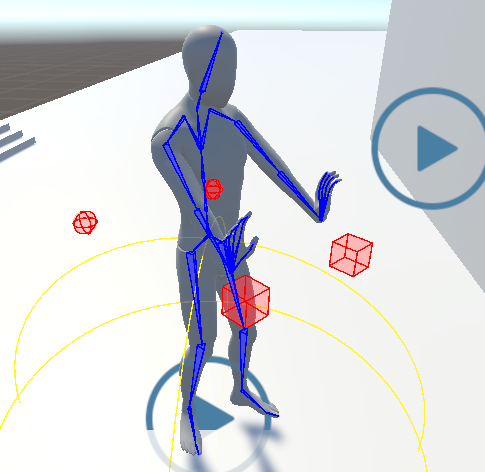
Overview: A full-body IK system will help characters adjust their entire posture when interacting with different surfaces. This system could, for example, ensure the torso leans slightly when standing on a steep incline.
Implementation:
- Integrate Unity’s Two-Bone IK or CCD IK for arms and spine adjustments, making the character’s posture responsive to the terrain.
- Configure body rotation and angle adjustments based on the slope, so that body lean aligns naturally with terrain inclination.
Outcome: Full-body IK adds a layer of physical believability, giving characters a natural stance and posture adjustment in diverse environments.
Enhancement 2: Dynamic Adjustment for Different Footwear
Overview: Different types of footwear or character states (e.g., sneaking, sprinting) could impact foot placement. For instance, heavy boots might have less flexibility compared to lighter footwear.
Implementation:
- Introduce a parameter for footwear type or movement state to adjust IK weight or foot rotation limits.
- Tune foot placement parameters for each type, such as allowing more rotation freedom for sneakers and a stiffer setting for heavy boots.
Outcome: This provides versatility for game characters, making foot placement more authentic across different terrains and movement styles.
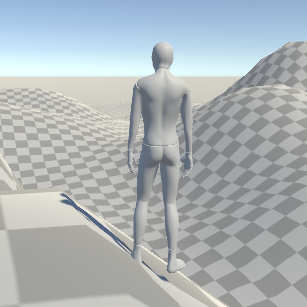
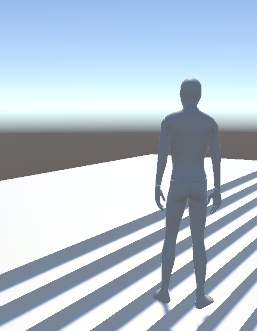
Enhancement 3: Advanced Surface Interaction Using Physics-Based Feedback
Overview: Adding physics-based reactions to the foot placement system enables realistic interactions with environmental elements like mud, snow, or slippery surfaces.
Implementation:
- Integrate physics materials that dynamically adjust the foot’s interaction (e.g., adding subtle sliding on ice).
- Use particle effects to simulate surface reactions, such as dust for dry terrain or water splash effects on wet surfaces.
- Use physics-based constraints on foot rotation and placement, allowing the foot to adapt to specific surface properties (e.g., deform slightly when walking on soft ground).
Outcome: Such a setup improves immersion by providing visual and physical feedback, simulating real-life terrain characteristics and character reactions.
Enhancement 4: Multi-Character System for Complex Interactions
Overview: Expanding the IK system for multi-character interactions allows characters to respond dynamically in crowded or group environments, adapting their stance and foot placement when near other characters.
Implementation:
- Apply detection mechanisms for other characters or entities within a specific radius, adjusting foot placement accordingly (e.g., avoiding stepping on another character’s foot).
- Synchronise IK adjustments for group movements, allowing for coordinated steps in formations.
Outcome: Multi-character IK enhances crowd dynamics, allowing characters to interact naturally, especially in crowded scenes or cooperative movements.
Enhancement 5: Integration with Procedural Animation Systems
Overview: Combining procedural animation with IK provides a highly adaptable system where characters can adjust to any environment without predefined animations.
Implementation:
- Link procedural animation scripts with the IK system to influence not only foot placement but also gait and limb movements based on terrain.
- Test procedural adjustments to modify step height, stride length, and arm movement to match slopes and obstacles.
Outcome: The character becomes fully adaptive, reacting not only to different terrains but also changing obstacles dynamically in real-time.
9. Evaluation and Testing
Evaluation and testing are essential to ensure that the IK foot placement system functions reliably across a wide range of scenarios. This section details the testing methods, performance benchmarks, and iterative adjustments necessary to optimise the system and measure its success in enhancing character movement realism.
Testing Process
Scene Setup for Testing:
Create a test scene with varied terrain, including slopes, stairs, and irregular surfaces (e.g., rocky ground). Adding objects like small steps, inclines, and random bumps will help simulate real-world movement challenges.
Testing Scenarios:
Set up specific scenarios to evaluate the system’s adaptability:
- Flat Terrain: Observe if foot alignment remains stable on level surfaces.
- Inclined Terrain: Test character walking up and down slopes, monitoring how foot rotation and position adapt to maintain contact.
- Obstacles and Steps: Position the character to walk over steps or small obstacles to verify that foot placement adjusts without clipping or floating.
- Dynamic Movement: Test varied animations (e.g., walking, running, stopping abruptly) to ensure smooth IK transitions without sudden shifts in foot placement.
Performance Benchmarking
- Frame Rate Analysis: Monitor frame rates while the IK system is active, paying attention to scenes with multiple Raycasts. This helps ensure the system does not impact game performance.
- Memory Usage: Measure memory usage when the IK system is fully enabled and while managing multiple characters. By tracking memory allocation, you can identify any areas that may require optimization.
- Real-Time Reaction: Evaluate the responsiveness of the IK adjustments during sudden movements or quick changes in terrain. Ideally, foot placement should update within milliseconds for fluid movement, enhancing gameplay experience.
Iterative Adjustments
- Refining Raycast Accuracy: Use feedback from testing to adjust Raycast length, layer masks, and offset values. Small adjustments can significantly improve the foot’s positioning accuracy.
- Smoothing Transitions: Tweak
Mathf.LerpandQuaternion.Slerpvalues in your script to eliminate any lingering snapping or abrupt movements of the foot on terrain. - Feedback Loop: Gather feedback from users, testers, or focus groups to identify areas needing fine-tuning, such as timing delays, terrain types, or animation preferences. Continuous iteration is key to achieving realistic behavior across varied surfaces.
Success Metrics
- Realism of Foot Placement: Rate the system on its ability to mimic natural foot adjustments, particularly how well it adapts to surfaces with complex inclines.
- Performance Impact: Aim for minimal impact on frame rate or memory usage, ideally maintaining smooth gameplay even with multiple characters using the system.
- User Experience: Track player feedback, especially concerning immersion and natural character movements, to gauge the system’s impact on gameplay quality.
10. Conclusion
This project demonstrates the potential for integrating advanced Inverse Kinematics (IK) foot placement into Unity-based character animations. By addressing the limitations of traditional animation systems, the IK foot placement system enables characters to dynamically adjust their stance and foot positioning in response to varied terrain types. Here are the main outcomes and key takeaways from the project:
Summary of Achievements
- Realistic Movement: The IK foot placement system has achieved a high level of realism, allowing characters to adapt their movements seamlessly across flat, inclined, and uneven surfaces.
- Enhanced Immersion: With characters that respond naturally to the environment, the game’s overall immersion level is significantly elevated, providing players with a more engaging experience.
- Efficient Performance: Through optimised Raycasts and IK weights, the system maintains smooth performance, even in resource-demanding environments or with multiple characters using IK foot placement.
Key Learnings
- IK in Real-Time Animation: Understanding the intricacies of IK in real-time applications has provided insights into the complexities of procedural animation. Balancing realism with performance remains a core challenge, particularly when working with interactive terrains.
- Technical Integration with Unity: This project highlights the versatility of Unity’s Animator, IK, and Rigging systems, demonstrating their capacity to support detailed character adjustments dynamically.
- Iterative Development for Realism: Achieving realistic foot placement requires continuous adjustments and testing, particularly for handling edge cases (e.g., narrow steps or abrupt terrain changes).
Limitations and Challenges
- Environmental Variety: While the system performs well on predefined terrains, additional refinements may be needed for more complex surfaces or dynamic objects (e.g., moving platforms).
- Performance Scalability: For games with multiple characters, additional optimizations may be required to prevent performance drops due to multiple Raycast operations.
- IK Limitations in Unity: Unity’s built-in IK tools offer a solid foundation but may require third-party plugins or custom scripts for advanced functionalities, especially in large-scale environments.
Future Enhancements
- Full-Body IK Integration: Expanding the system to cover full-body IK would allow for more comprehensive character adjustments, especially in challenging environments with steep or irregular surfaces.
- Procedural Animation and Physics Integration: Adding procedural animation adjustments and physics-based reactions (e.g., sliding on slopes or sinking in soft ground) would further enhance realism.
- AI-Assisted Adaptations: AI could be used to fine-tune foot placement settings or even anticipate and adapt to new terrain types, providing a more robust solution for open-world games.
References
[1] Unity, “Inverse Kinematics (IK) Overview,” Unity Documentation. Available at: https://docs.unity3d.com/Manual/InverseKinematics.html
[2] Unity, “Animator Component,” Unity Documentation. Available at: https://docs.unity3d.com/Manual/class-Animator.html
[3] Unity, “Using IK with Animation Rigging,” Unity Documentation. Available at: https://docs.unity3d.com/Packages/com.unity.animation.rigging@1.0/manual/index.html
[4] How to build a Character Rig and State Machine for Procedural Animation | Unity Tutorial. Available at: https://www.youtube.com/watch?v=-Oqa-iOZpIE&ab_channel=iHeartGameDev
[5] Unity, “Animation rigging foot IK not working,” Unity Forums. Available at: https://discussions.unity.com/t/animation-rigging-foot-ik-not-working/951884
[6] Unity, “Root Motion and IK,” Unity Documentation, 02-11-2024. Available at: https://docs.unity3d.com/Manual/RootMotion.html
[7] Intro to Animation Rigging & Procedural Animation in Unity | Unity Tutorial. Available at: https://www.youtube.com/watch?v=Wx1s3CJ8NHw&ab_channel=iHeartGameDev
[8] Mixamo characters with animations. Available at: https://www.mixamo.com/#/
[9] How to Animate a Character in Unity 2021. Available at: https://www.youtube.com/watch?v=02Z9CU92NW8&ab_channel=Maximple
[10] Unity, “Character Controller component reference,” Unity Documentation. Available at: https://docs.unity3d.com/2022.3/Documentation/Manual/class-CharacterController.html
[11] Inverse Kinematics Animation Definition. Available at: https://brush.ninja/glossary/animation/inverse-kinematics/#:~:text=Inverse%20Kinematics%20is%20a%20way,too%2C%20like%20a%20real%20body.
[12] Master the Power of Unity Inverse Kinematics: Exploring Realistic Motion to Your Game Characters in 2023. Available at: https://bleedingedge.studio/blog/power-of-unity-inverse-kinematics-2023/
[13] Beginning Game Development: Inverse Kinematics (contains many links). Available at: https://medium.com/@lemapp09/beginning-game-development-inverse-kinematics-c4a31e961249